LinkedIn automation in HubSpot sequences: what the toggles actually do
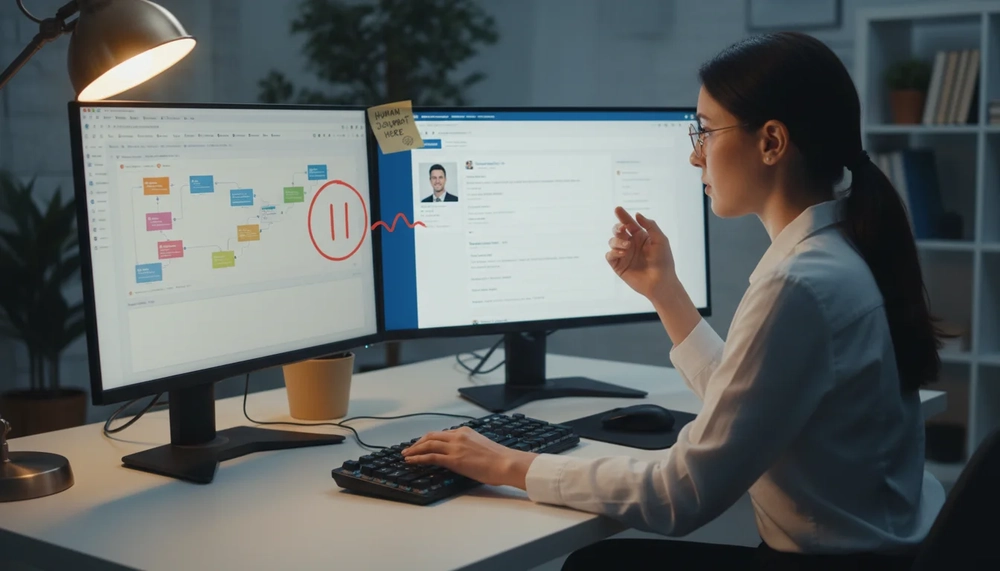
As of November 2026, HubSpot does not send LinkedIn messages for you. Sequences in HubSpot Sales Hub can hold InMail and connection request steps, but each of those steps is a task reminder that a sales rep works through by hand inside LinkedIn Sales Navigator. If you are comparing AI tools for outreach and wondering where ai automation for business fits, this is the first thing to settle: the sequence schedules the touch, the rep makes it.
That distinction shapes everything below. What follows is how the steps are built, which licences each user needs, how the timing rules work, and where the same "schedule the work, keep the person in the loop" pattern appears in other stacks.
Key takeaways
- The LinkedIn InMail and connection request steps are task reminders, and the rep still writes and sends the message inside Sales Navigator.
- Each user needs an assigned Sales Hub Professional or Enterprise seat plus a Sales Navigator Advanced Plus plan; the Advanced plan on its own does not meet the documented requirement.
- A sequence can hold up to 10 email templates, while task reminders are unlimited, so the LinkedIn touches are not the scarce resource.
- Automated emails can be delayed by up to 90 business days, which is enough to stretch a cadence across a quarter.
- Conversations started by InMail are not written to the HubSpot record automatically; someone has to log them.
What "LinkedIn automation" means inside HubSpot
HubSpot's own guide, published on 4 November 2026, defines the term narrowly for its product. Automation here means adding reminders to a structured sequence, not deploying a bot that connects or messages on a rep's behalf. The sequence owns the calendar and the queue. The rep owns the judgement call and the send.
This matters because the sales software market uses the same phrase for things that behave very differently. One category sends messages through browser extensions that act on a logged-in LinkedIn session, and those tools sit outside HubSpot's rules and outside LinkedIn's own terms. The other category, which is what Sales Hub documents, keeps the human step and automates the surrounding administration. For a sales team weighing ai automation broadly, that split is the first question to ask of any outreach tool: does it send, or does it schedule?

Sales Navigator is LinkedIn's prospecting platform. When it is connected to HubSpot, a rep sees profile details, shared connections and account information on the HubSpot contact and company records. That side panel is what makes a task reminder useful: when the reminder comes due, the context for a good message is already on screen.
Which licences the integration needs
Requirements are the most common reason a team starts this and then finds the task types missing from the editor. HubSpot documents two conditions, and both apply to every individual user who wants the LinkedIn steps.
| Requirement | Applies to | What happens without it |
|---|---|---|
| Assigned Sales Hub Professional or Enterprise seat | Each rep | No sequence editor with the Sales Navigator steps |
| LinkedIn Sales Navigator Advanced Plus plan | Each rep | The connection cannot be authenticated for that user |
| The Sales Navigator app installed per user | Each rep | No Sales Navigator card on the record |
A Sales Navigator Advanced plan does not satisfy the second row. HubSpot's documentation is explicit that Advanced Plus is the qualifying tier. If your team buys Sales Navigator seats separately from the CRM, check the plan name before promising anyone a LinkedIn step in their cadence.
Installation follows the usual marketplace path: open HubSpot Marketplace from the top navigation, search for LinkedIn Sales Navigator, install the app. Every rep installs it under their own HubSpot login, so an admin cannot connect on the team's behalf and leave the seats unconfigured. Once installed, the Sales Navigator card appears in the right sidebar of contact and company records. On records where the app was installed late last year, a Super Admin or a user allowed to customise record layouts has to add the card to the sidebar before anyone can use it.
One boundary worth knowing early: the standard integration does not import contacts from LinkedIn into HubSpot. The integration reads context from Sales Navigator; it does not move a prospect list across.
How to add an InMail task to a sequence
An InMail task is a scheduled reminder to send a LinkedIn message at a particular point in the cadence. The sequence produces the reminder; the message itself is typed and sent in the LinkedIn window that opens when the rep works the task.
- Open Sales and go to Sequences.
- Choose Create Sequence, then start from scratch or pick a template.
- Name the sequence with the pencil icon.
- Add a step with the plus icon.
- In the right panel, select the Sales Navigator InMail task.
- Fill in the task title and priority, decide whether the sequence pauses until the task is done, and pick a task queue.
- Put the key talking points or a draft into the Notes field.
- Add the remaining steps and save.
The pause setting is the one that changes how the cadence behaves. With it on, an enrolled contact sits at that step until the rep marks the task complete, and nothing downstream fires. With it off, the next automatic step goes ahead on schedule whether or not the rep has sent the InMail. Teams that want a strict sequence of touches usually pause; teams that treat LinkedIn as an optional extra usually do not.
Text in the Notes field is a prompt for the rep. It does not populate the Sales Navigator message box when the task opens, so anything you write there is for reading, and it has to survive a rep glancing at it between other tasks.
How to add a connection request task
The connection request step works the same way with a different label, and the reasoning for using it differs. An InMail is a message to someone you are not connected to, and LinkedIn treats it as a limited resource in its own right. A connection request is a smaller ask, so the step makes more sense at the front of a cadence, when a rep has a genuine reason to reach out.
To add one, open the sequence editor, click the plus icon where the connection should appear, and choose the Sales Navigator connection request task. Set the title, priority, pause behaviour and queue, put the reason for connecting in the Notes field, then add the step and save.
From a task queue, the rep opens the contact, reviews the prospect in the Sales Navigator panel and sends the request. Because the send is manual, the message can be adjusted to the profile in front of them, which is the whole point of leaving the step to a person.
Outreach ai automation in most sales stacks stops at this boundary: the platform can rank, queue and time work, but the account-level action on a social network stays with the rep. HubSpot has chosen that boundary deliberately for LinkedIn, and it is the reason the steps are called tasks rather than actions.
Timing rules: the two limits that change your sequence design
Two documented limits set the shape of a sequence, and both are easy to discover too late.
The first concerns automated emails. If an email is not the first step of a sequence, the delay before it sends can be set up to 90 business days. That is roughly a full quarter of working days, so a single email step can be parked longer than a fiscal quarter without leaving the sequence. It is useful for seasonal cadences and renewal reminders, and it is also a trap for anyone who builds a step and forgets where it sits.
The second concerns the number of steps. Each sequence is limited to 10 email templates, although task reminders can be added as many times as needed. Read together, the two limits say something practical: the scarce budget in a sequence is automated email, not human tasks. A team that wants more touchpoints without more generic email has room to add reminders, including the LinkedIn ones, and room to keep them varied.
| Sequence constraint | Limit | Practical effect |
|---|---|---|
| Automated email delay | up to 90 business days | Long waiting periods are possible between email steps |
| Email templates per sequence | 10 | Email variety is capped within one sequence |
| Task reminders per sequence | unlimited | LinkedIn, call and general tasks are not capped |
A third timing setting sits at the queue level: the default due time for task reminders is configured per user, and a task becomes due at 5pm on its calendar day in the time zone that was selected when the contact was enrolled. If your team works across Singapore and another market, an enrolled contact's time zone can shift when a rep sees the reminder.
When to use LinkedIn versus email versus a call
The choice is about purpose, not about which channel a checklist says comes next. A sequence can carry all three without every prospect receiving every touch.
Use a connection request when there is a reason to know each other: a shared event, a mutual contact, a role that matters at an account you are working. Use an InMail when a LinkedIn message is a natural way to reach that person and a short note adds something the email thread does not. Use email when the message needs to be detailed, carry a document or hold a written trail. Use a call when the conversation depends on back-and-forth and waiting for a reply would cost more than dialling.
The pattern that tends to hold up is a chain, not a rotation: a connection request to establish familiarity, an email that provides context, a call once interest is visible. Each step answers what the previous one left open. A sequence that sends every channel to every prospect in the same order produces touches without a reason, and reps start skipping the tasks or completing them with generic text.
Personalising the LinkedIn touch before it is sent
The quality of a LinkedIn step comes down to what the rep sees when the reminder arrives. HubSpot's guidance is to review the contact record, the company record and the activity history before writing, which takes a minute if the data is clean and much longer if it is not.
On the contact, look at role, tenure, location and prior interactions. In Sales Navigator's view, shared connections and recent activity often supply the reason to write. On the company record, industry, size and location frame the message, and company updates can tell a rep whether there is a timely hook. The activity timeline then shows whether anyone on the team has already spoken to this person through email or a call.
That review step is also what most ai automation for sales teams quietly depends on: a reminder is only as good as the record behind it. Two practical gaps to design around. First, an InMail conversation is not automatically saved to the HubSpot record through the standard integration, so a rep has to log it or the next colleague starts blind. Second, task Notes do not carry into the composer. Both gaps point to the same habit: after sending, spend the extra moment writing the log entry, because the next step in the cadence will be built on it.
A task title that says what to do and why works better than a generic label. "Review the announcement from their company this week and reference it in the connection note" gives a rep a starting point; "Send LinkedIn message" gives them a chore.
Where the pattern sits between rule-based and AI automation
Sales teams now hear two different pitches about AI and outreach, and the HubSpot sequence sits in an awkward position between them.
A rule-based automation tool moves data between applications on if-then logic: a form fills, a field copies, a record appears in a list. It cannot read a message or decide whether a touch is appropriate. A glossary definition of AI automation goes further, describing systems that use language models to read an inbound message, work out intent, draft a reply and route it for approval in one flow. Those systems handle ambiguity that rules cannot.
A HubSpot sequence belongs to the first family. Its timing is deterministic, its steps are fixed, and the point at which a human judgement is required is marked explicitly as a task. That is not a weakness. For a LinkedIn touch, a human decision is exactly what the platform is trying to preserve, and the sequence's job is to make sure the decision happens on time.
The practical test for a sales lead comparing tools is where each candidate draws the human step. If a tool claims to send LinkedIn messages automatically, ask what happens when a prospect replies badly or when the account is one the business should not approach. If a tool keeps the send manual, ask whether it gives the rep enough context to make the send good. The answer narrows the field quickly.
Gap filled: "AI 工具 課程" and which tool the LinkedIn touch actually needs
Related searches around "AI 工具 課程" show a buyer comparing AI tools for outreach and training, which is a different question from how to build the sequence. The answer for the LinkedIn touch is narrower than the tool-shopping framing suggests: the tool you need is the task reminder inside the sequence, and its job is to place a person in front of the right record at the right time.
That has three consequences for how the LinkedIn step is evaluated alongside the rest of the stack.
First, the LinkedIn step's cost is a licence cost, not a per-message cost. A rep who has the seat, the Advanced Plus plan and the app installed can add as many task reminders as the sequence needs, because reminders are not capped the way email templates are. A team already paying for the seats gets the LinkedIn capacity at no extra per-touch price.
Second, the LinkedIn step's quality is a data question. If contact records are thin, the reminder arrives with nothing to personalise from, and the rep either skips it or writes something generic. The step inherits whatever the CRM knows, so investments in record hygiene pay off directly at this step.
Third, comparing tools should compare where the human step falls in the workflow, not how many features each listing claims. A tool that automates the send and a tool that schedules the send are solving different problems, and no feature list makes them interchangeable. That is where an ai automation for business evaluation earns its place: it should ask the vendor to name the approval point, not to show a feature list.
The rule is simple: the LinkedIn step is worth automating when the manual work is remembering, and risky when the manual work is deciding.
How Topkee approaches the same handoff
Topkee's point of view comes from the other end of the workflow, where the LinkedIn-originated prospect arrives and the follow-up has to start. The knowledge base is clear that Topkee does not sell a LinkedIn automation product and holds no HubSpot integration; the follow-up side is where its systems sit.
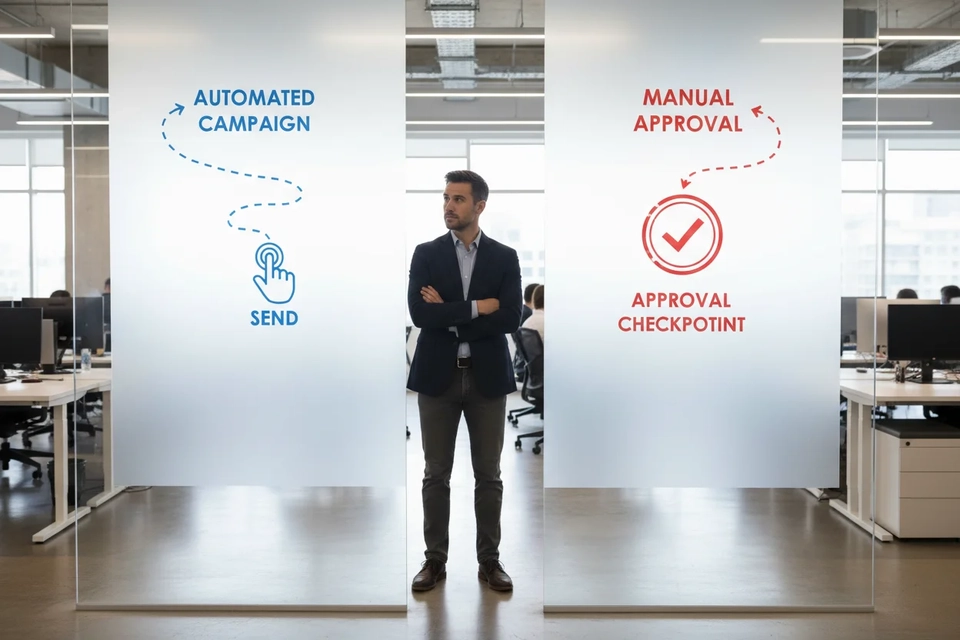
Topkee AI Agent is documented as a platform for cross-system task automation: it takes a natural-language goal, matches the work to a Skill or tool, connects to authorised business services and returns results into a workbench where a person can approve before an action runs. That is the same division of labour a HubSpot sequence makes with LinkedIn tasks, applied to a wider set of systems.
Leadbox covers the stage and task side. Sales teams customise stages without developer help, the default stages run from discovered lead through closed won, and a stage update triggers an event returned by prospect ID for attribution. A sales lead assigns a task from the prospect list and each member receives an email notification for that lead, with calls, chats, emails and progress notes recorded in one place.
On the channel side, the LinkedIn Lead Forms connector in TTO CDP syncs valid lead-form responses into the CDP, and Topkee Voice Agent's CRM collaboration writes call results into the customer's CRM and generates follow-up tasks. Where a customer runs HubSpot, the realistic path is a project-level assessed connection: account authorisation, available interfaces, field mapping and duplicate handling are confirmed separately, and the service is sold as assessed per project rather than plug-and-play. That is an honest limit, and it is a better question to ask a vendor than a promise of instant integration.
A checklist you can run today
Before adding a LinkedIn step to a sequence this week, work through this list.
- Confirm every rep who will receive the tasks has an assigned Sales Hub Professional or Enterprise seat and a Sales Navigator Advanced Plus plan, and has installed the app under their own login.
- Ask a Super Admin whether the Sales Navigator card has been added to record layouts if the app was installed recently.
- Map the sequence: which steps need a rep to decide something, and which can send on a schedule.
- Set the pause behaviour deliberately on each LinkedIn task, and note which choice each step uses.
- Count the automated email steps against the 10 template limit and the 90 business day delay ceiling before adding more.
- Write task titles that carry a reason, not just an action.
- Agree how InMail conversations get logged, since the standard integration does not record them for you.
Recommended next step
If the LinkedIn task is only one part of the follow-up problem, the bigger question is what happens when a prospect answers. The work behind Topkee AI Agent is documented around tasks, approvals and run records for cross-system work, which is the layer that picks up after the sequence ends. The ai automation for business page sets out how those engagements are scoped.
For the sequence itself, the HubSpot guide to LinkedIn automation and HubSpot's documentation on creating sequences are the two documents to read before building.
FAQ
Does HubSpot send LinkedIn messages automatically?
No. Sales Hub sequences create task reminders for InMail and connection requests, and a rep completes each one inside LinkedIn Sales Navigator. Nothing is sent to a prospect without a person pressing send.
Do I need Sales Navigator to use LinkedIn tasks in a sequence?
Yes. The LinkedIn-specific steps come from HubSpot's Sales Navigator integration, which needs an Advanced Plus plan per user and an assigned Sales Hub Professional or Enterprise seat. The Advanced plan alone is not enough.
How many LinkedIn tasks can one sequence hold?
Task reminders are not capped, so the number of LinkedIn steps is limited by what a rep can reasonably work through rather than by a product limit. Email templates are the constrained resource, at 10 per sequence.
Why is my LinkedIn task step missing from the sequence editor?
Check the licence first: a missing Sales Hub Professional or Enterprise seat, an Advanced Plus plan that is really Advanced, or an app not installed under that user's own login will all leave the step types unavailable. If the app is installed and the card is missing from records, a Super Admin may still need to add it to the layout.
Should I pause the sequence until the LinkedIn task is completed?
Pause when the LinkedIn touch is meant to gate the next step, for example when the email that follows depends on whether a connection was accepted. Leave it running when the LinkedIn step is optional and the emails should proceed regardless.
Sources
- Kinzal Jalan, "How to use LinkedIn automation in HubSpot sequences", HubSpot Blog, 2026-11-04. https://blog.hubspot.com/sales/linkedin-automation
- "Create and edit sequences", HubSpot Knowledge Base. https://knowledge.hubspot.com/sequences/create-and-edit-sequences
- "What Is AI Automation? — Using AI to Execute Business Processes", JieGou. https://jiegou.ai/zh-TW/glossary/ai-automation/
- "Smart Business Automation with AI", CUHK School of Continuing and Professional Studies. https://www.scs.cuhk.edu.hk/en/part-time/it-fundamentals-applications/smart-business-automation-with-ai-ai/262-191320-01

Article Author
Pang Sir